> ## Documentation Index
> Fetch the complete documentation index at: https://documentation.suby.fi/llms.txt
> Use this file to discover all available pages before exploring further.
# Checkout
> The hosted checkout page Suby generates for every product.
Every product on Suby has a hosted checkout page. When a customer clicks your PayLink or is redirected via a Checkout Session, they land on this page to complete their payment.
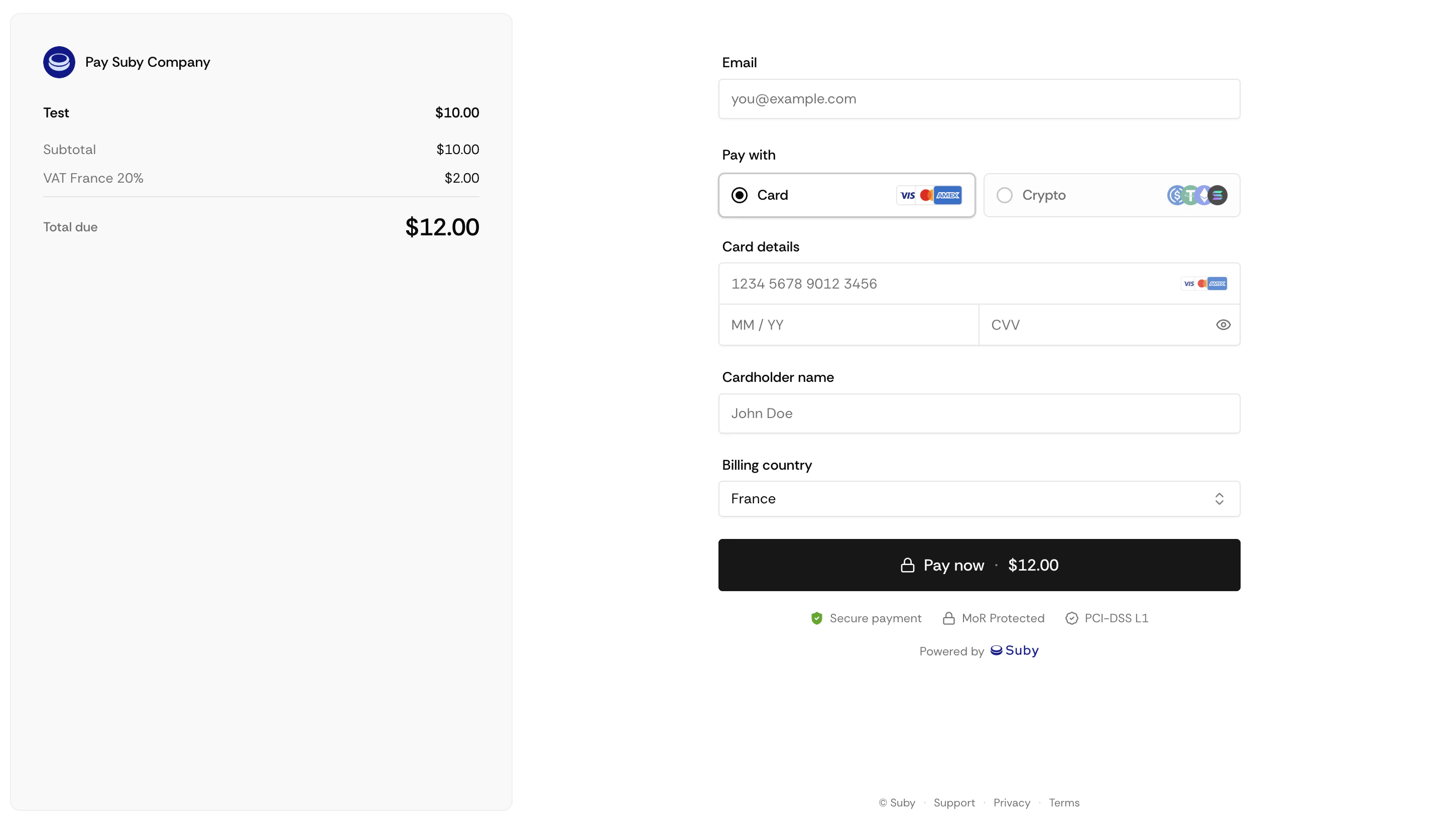 ## What the Checkout Includes
Upload a custom logo image to brand your checkout page.
Displayed prominently at the top. Supports plain text.
Cards, Apple Pay, Google Pay, bank account, and stablecoins, displayed automatically based on what you have enabled.
Price, applicable taxes calculated in real time based on the customer's location, and total before confirmation.
## Setting Up Your Checkout
Open the product in your dashboard and click **New product**.
Upload a banner image and fill in your product name and description.
Changes apply immediately to your live checkout.
## After Payment
Once a customer completes payment, they are shown a default Suby confirmation page with their order details.
Custom success pages are not supported at this time.
Endpoints, parameters, and response objects for Checkout Sessions.
## What the Checkout Includes
Upload a custom logo image to brand your checkout page.
Displayed prominently at the top. Supports plain text.
Cards, Apple Pay, Google Pay, bank account, and stablecoins, displayed automatically based on what you have enabled.
Price, applicable taxes calculated in real time based on the customer's location, and total before confirmation.
## Setting Up Your Checkout
Open the product in your dashboard and click **New product**.
Upload a banner image and fill in your product name and description.
Changes apply immediately to your live checkout.
## After Payment
Once a customer completes payment, they are shown a default Suby confirmation page with their order details.
Custom success pages are not supported at this time.
Endpoints, parameters, and response objects for Checkout Sessions.