> ## Documentation Index
> Fetch the complete documentation index at: https://documentation.suby.fi/llms.txt
> Use this file to discover all available pages before exploring further.
# Telegram Integration
> Sell access to Telegram groups and channels with a native checkout experience.
Suby's Telegram integration lets you monetize Telegram groups and channels without managing access manually. Configure everything when you create your PayLink — Suby handles the rest.
## What's Included
Generate a PayLink tied to a Telegram group or channel and share it anywhere. Customers pay and receive an invite link instantly.
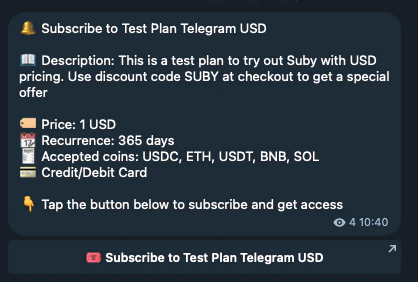
Run the full checkout flow inside Telegram. Customers pay with cards or stablecoins without leaving the app.
Payment confirmations, renewal reminders, and cancellation notices sent directly inside Telegram.
## How It Works
**For your members**
A member clicks your PayLink or triggers checkout inside Telegram.
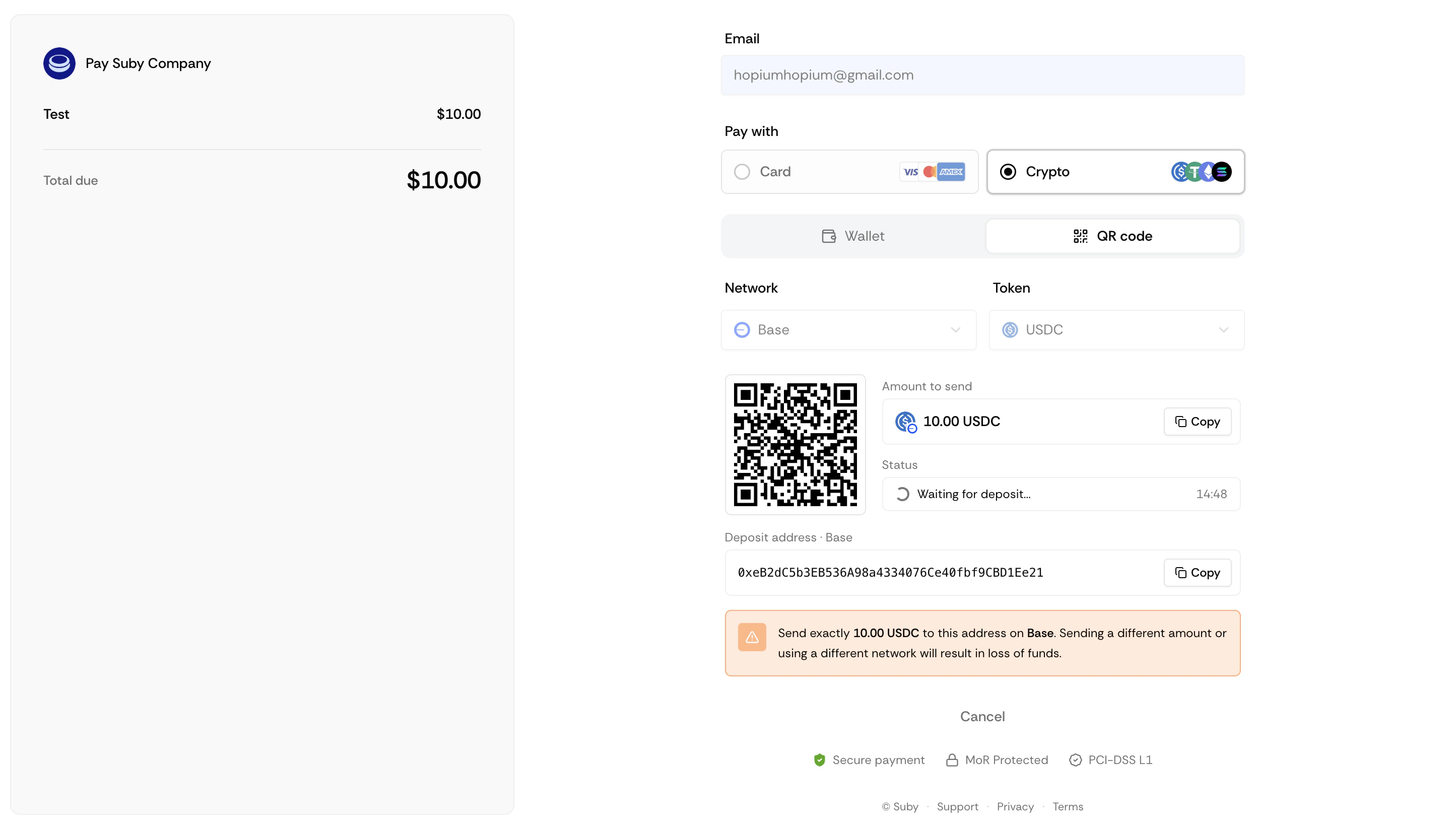
 They complete payment with a card or stablecoin.
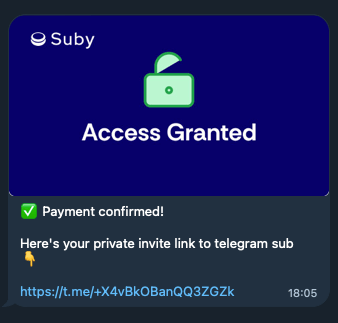
They receive an invite link instantly.
They complete payment with a card or stablecoin.
They receive an invite link instantly.
 On renewal, access is maintained automatically.
On cancellation or failed payment, they are removed and notified.
**For you**
Everything is set up at PayLink creation, no ongoing manual work.
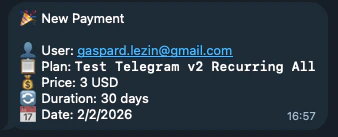
Receive notifications for new payments, renewals, and cancellations.
On renewal, access is maintained automatically.
On cancellation or failed payment, they are removed and notified.
**For you**
Everything is set up at PayLink creation, no ongoing manual work.
Receive notifications for new payments, renewals, and cancellations.
 Manage access manually from your dashboard at any time.
## Setting Up the Integration
Telegram is configured directly when you create a PayLink. There is no separate setup step.
Go to your [dashboard](https://app.suby.fi/) and click **Create product**. Set your billing type, price, and currency.
Under **Integration**, select **Telegram**.
Add the Suby bot to your group or channel and grant it admin permissions when prompted.
Choose the Telegram group or channel you want to gate.
Your PayLink is ready to share.
Telegram integration supports groups and channels only.
***
Step-by-step setup, native checkout, and notification configuration.
Manage access manually from your dashboard at any time.
## Setting Up the Integration
Telegram is configured directly when you create a PayLink. There is no separate setup step.
Go to your [dashboard](https://app.suby.fi/) and click **Create product**. Set your billing type, price, and currency.
Under **Integration**, select **Telegram**.
Add the Suby bot to your group or channel and grant it admin permissions when prompted.
Choose the Telegram group or channel you want to gate.
Your PayLink is ready to share.
Telegram integration supports groups and channels only.
***
Step-by-step setup, native checkout, and notification configuration.