> ## Documentation Index
> Fetch the complete documentation index at: https://documentation.suby.fi/llms.txt
> Use this file to discover all available pages before exploring further.
# Transactions
> The complete log of every payment event across your account.
The Transactions page is the full log of every payment event on your account, every charge attempt, regardless of outcome. Unlike the Payments page which shows successful payments only, Transactions shows the complete picture.
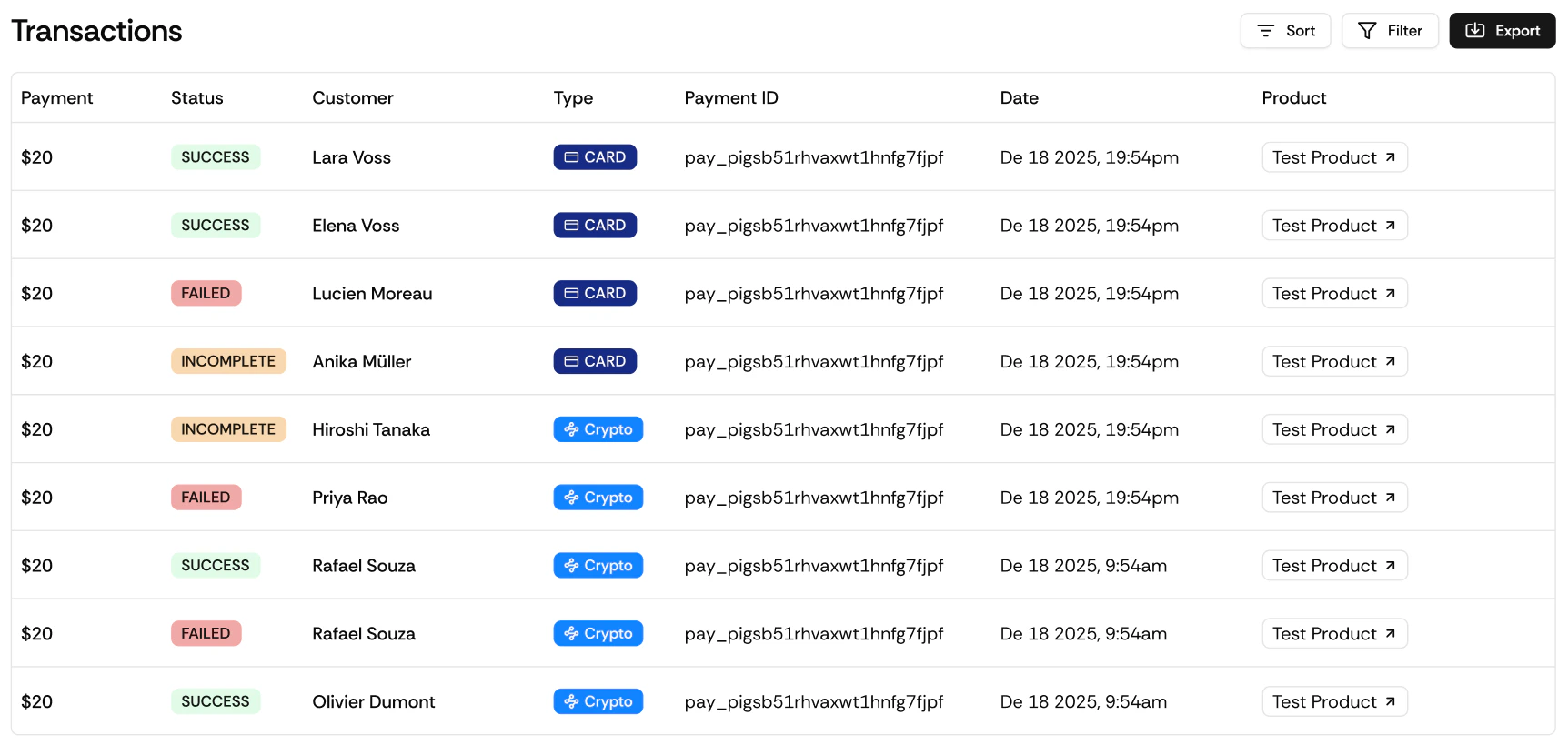 ## Transaction Statuses
| Status | What it means |
| ----------- | ----------------------------------------------------- |
| `succeeded` | Payment was processed successfully |
| `pending` | Payment initiated but not yet confirmed |
| `expired` | Checkout session opened but payment was not completed |
| `failed` | Payment attempt was declined or failed |
| `refunded` | Payment was successfully refunded |
## What You Can Do
Click any transaction to see the full breakdown, amount, fees, customer, product, payment method, and timestamp.
Refund any transaction with status `succeeded` directly from this page.
Narrow down by status (succeeded, pending, expired, failed, refunded) or by date range.
Download your full transaction log as CSV for accounting, reconciliation, or tax records.
## Exporting Transactions
Navigate to **Transactions** in your dashboard.
Filter by status and period as needed.
Click **Export** and download your CSV.
The export includes all transaction details matching your current filter selection, useful for accounting, reconciliation, or tax records.
## Transactions vs. Payments
Successful charges only, the revenue view of your account. Use this for revenue tracking.
Every event including failed attempts, expired sessions, and refunds, the complete operational log. Use this for debugging, reconciliation, and support.
## Transaction Statuses
| Status | What it means |
| ----------- | ----------------------------------------------------- |
| `succeeded` | Payment was processed successfully |
| `pending` | Payment initiated but not yet confirmed |
| `expired` | Checkout session opened but payment was not completed |
| `failed` | Payment attempt was declined or failed |
| `refunded` | Payment was successfully refunded |
## What You Can Do
Click any transaction to see the full breakdown, amount, fees, customer, product, payment method, and timestamp.
Refund any transaction with status `succeeded` directly from this page.
Narrow down by status (succeeded, pending, expired, failed, refunded) or by date range.
Download your full transaction log as CSV for accounting, reconciliation, or tax records.
## Exporting Transactions
Navigate to **Transactions** in your dashboard.
Filter by status and period as needed.
Click **Export** and download your CSV.
The export includes all transaction details matching your current filter selection, useful for accounting, reconciliation, or tax records.
## Transactions vs. Payments
Successful charges only, the revenue view of your account. Use this for revenue tracking.
Every event including failed attempts, expired sessions, and refunds, the complete operational log. Use this for debugging, reconciliation, and support.