> ## Documentation Index
> Fetch the complete documentation index at: https://documentation.suby.fi/llms.txt
> Use this file to discover all available pages before exploring further.
# Discord Integration Setup
> Connect your Discord server to Suby and start gating access with paid roles in minutes.
This guide walks you through connecting your Discord server to Suby. Before starting, make sure you have already created a product and selected Discord as the integration method.
Follow the Quickstart guide to set up your first product in under 2 minutes.
## Setup
Connect your Discord account to Suby so the bot can manage roles and access automatically.
 Choose the Discord server you want to connect, then invite the Suby bot to your server when prompted.
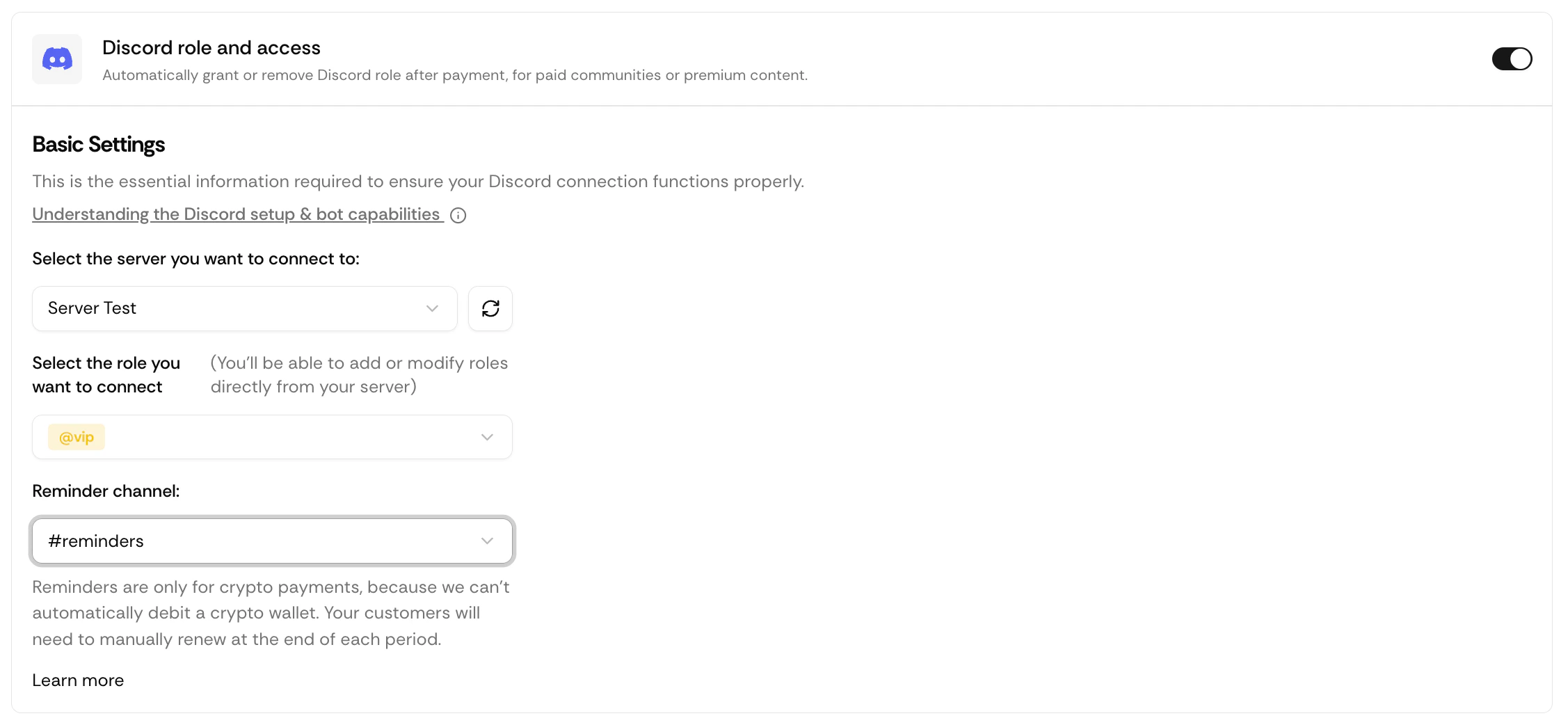
Select the paid role users will receive after a successful payment, and configure a reminder channel for crypto subscribers.
Choose the Discord server you want to connect, then invite the Suby bot to your server when prompted.
Select the paid role users will receive after a successful payment, and configure a reminder channel for crypto subscribers.
 Make sure the Suby bot is positioned **above** the paid role in your Discord role hierarchy. If the bot's role is lower than the paid role, it will not be able to assign or revoke it.
The reminder channel is only required if you accept crypto payments. It is where Suby sends renewal reminders to members before their access period expires.
Click **Publish now**. Your PayLink is live and the bot is active.
## Updating Your Configuration
If you need to change the paid role or reminder channel after publishing, you can do it directly from Discord using Suby bot slash commands, no need to go back to the dashboard.
Full list of available commands for managing your Discord integration.
Make sure the Suby bot is positioned **above** the paid role in your Discord role hierarchy. If the bot's role is lower than the paid role, it will not be able to assign or revoke it.
The reminder channel is only required if you accept crypto payments. It is where Suby sends renewal reminders to members before their access period expires.
Click **Publish now**. Your PayLink is live and the bot is active.
## Updating Your Configuration
If you need to change the paid role or reminder channel after publishing, you can do it directly from Discord using Suby bot slash commands, no need to go back to the dashboard.
Full list of available commands for managing your Discord integration.