

What’s Included
Paid Role Gating
Grant and revoke Discord roles automatically based on payment status. When a customer pays, the role is assigned instantly. When they cancel or lapse, access is revoked.
Shareable PayLink
Generate a PayLink tied to a paid role and share it anywhere, inside your server, on social media, or in a bio link.
Native Discord Checkout
Run the full checkout flow inside Discord. Customers pay with cards or stablecoins without ever leaving the server.
Built-in Notifications
Payment confirmations, renewal reminders, and cancellation notices sent directly inside Discord.
Free Days
Offer a free access period before billing starts, configured natively inside the flow.
Slash Commands
Server owners manage payments, members, and notifications directly from Discord using built-in slash commands.
How It Works
For your members
For you as the server owner
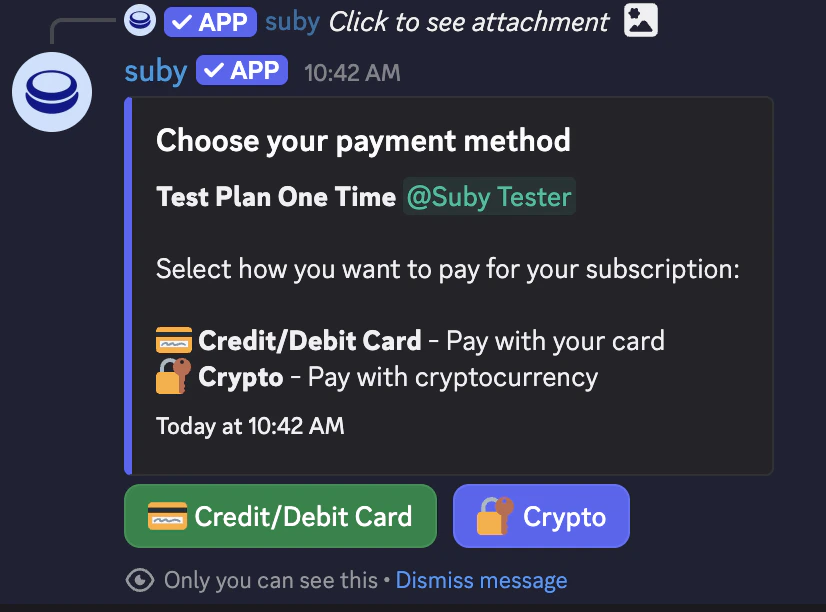
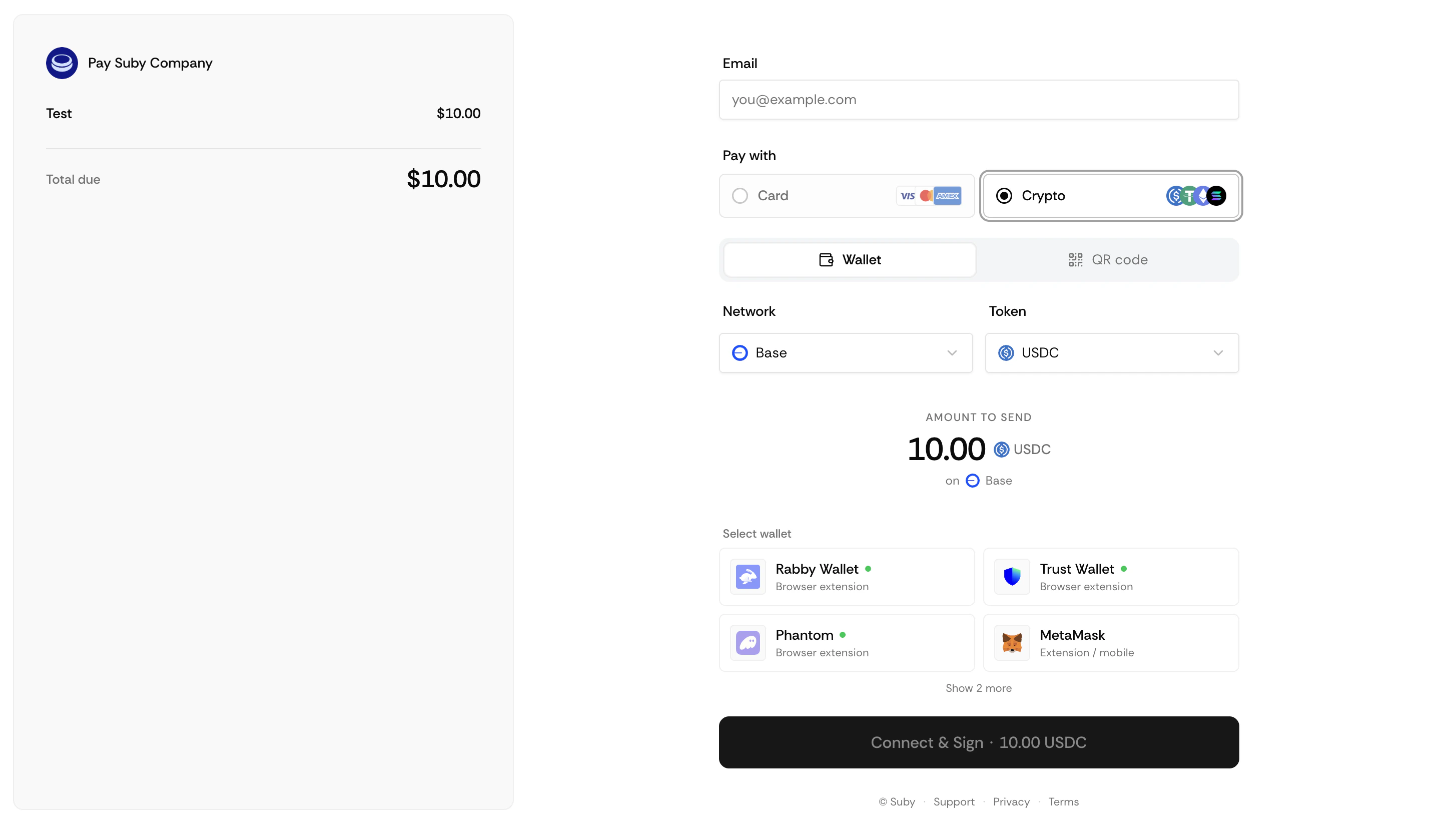
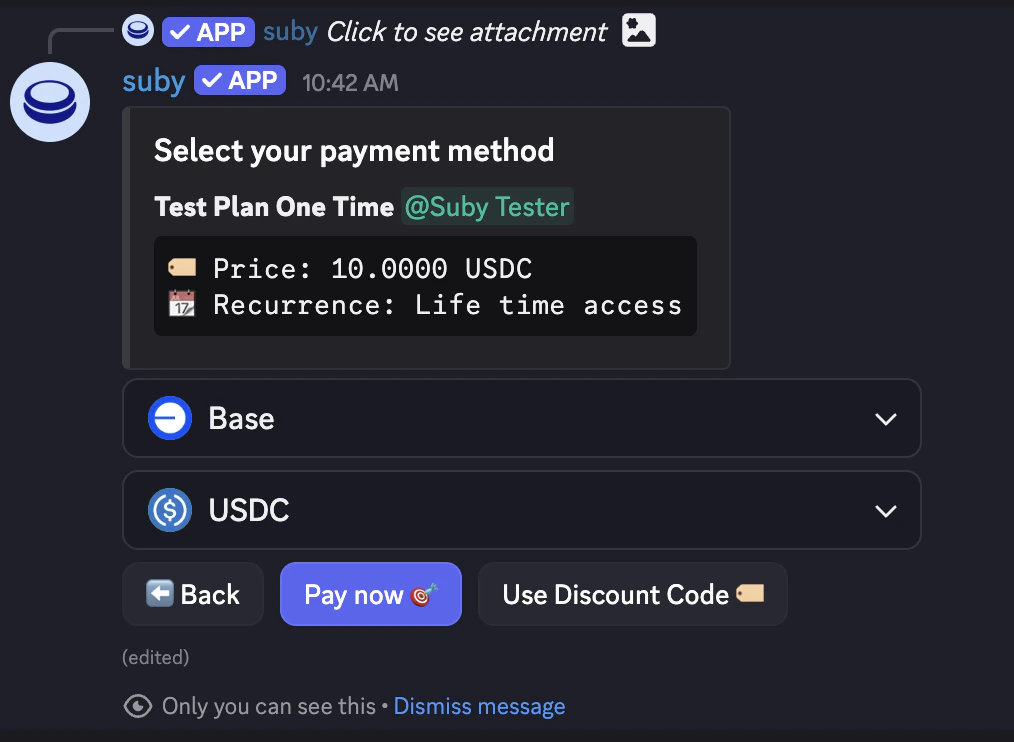
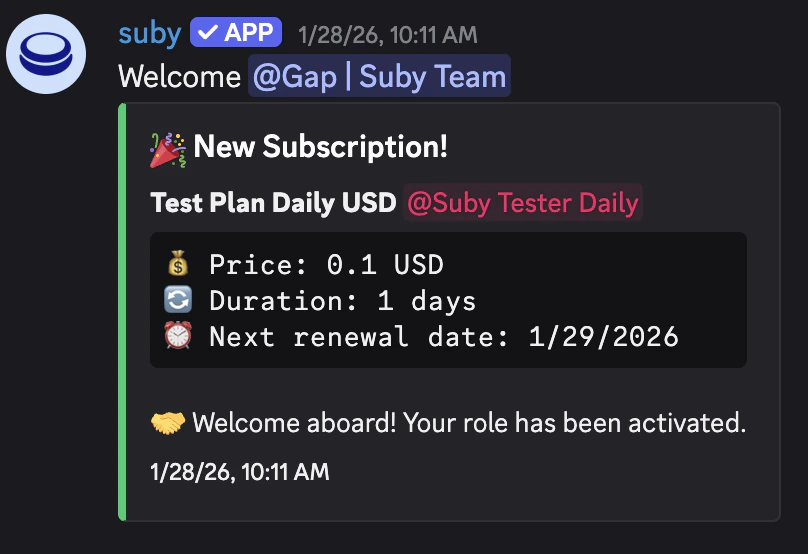
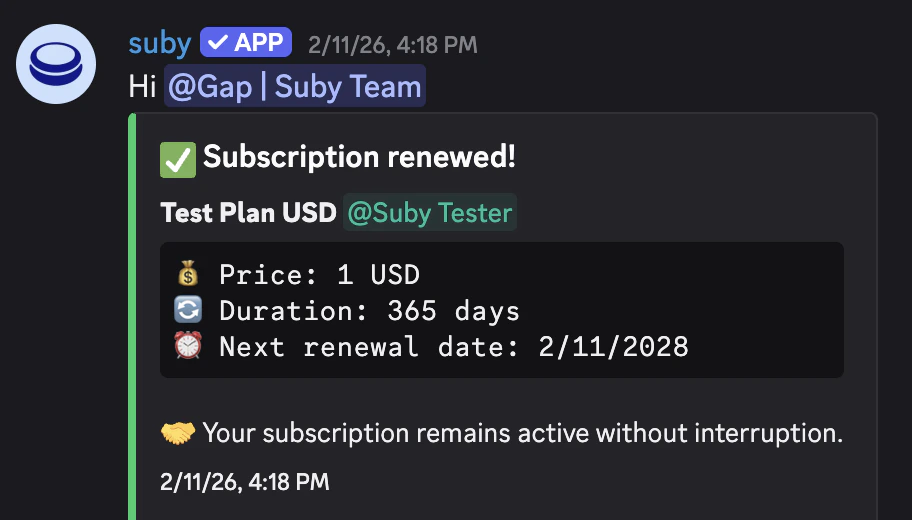
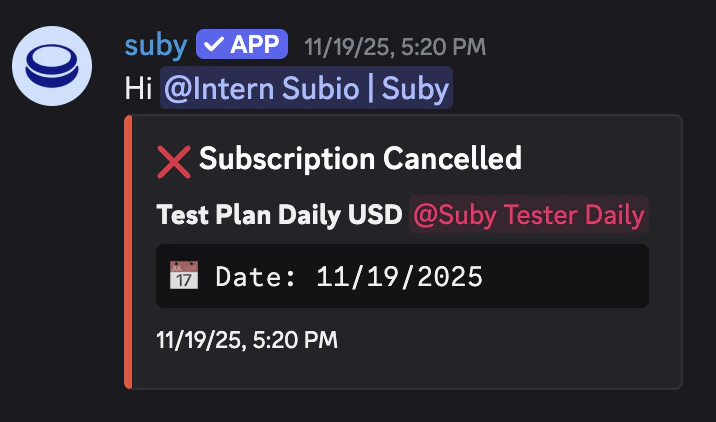
Manage from dashboard or Discord
Manage everything from your Suby dashboard or directly via slash commands inside Discord.
Setting Up the Integration
Setting up Discord starts at the product level. You create a product in Suby and connect it to a server and a paid role in the same flow.Create a product
Go to your dashboard and click Create product. Set your billing type, price, and currency.
Full Discord Integration Guide
Step-by-step setup, slash commands, notifications, free days, and native checkout.