

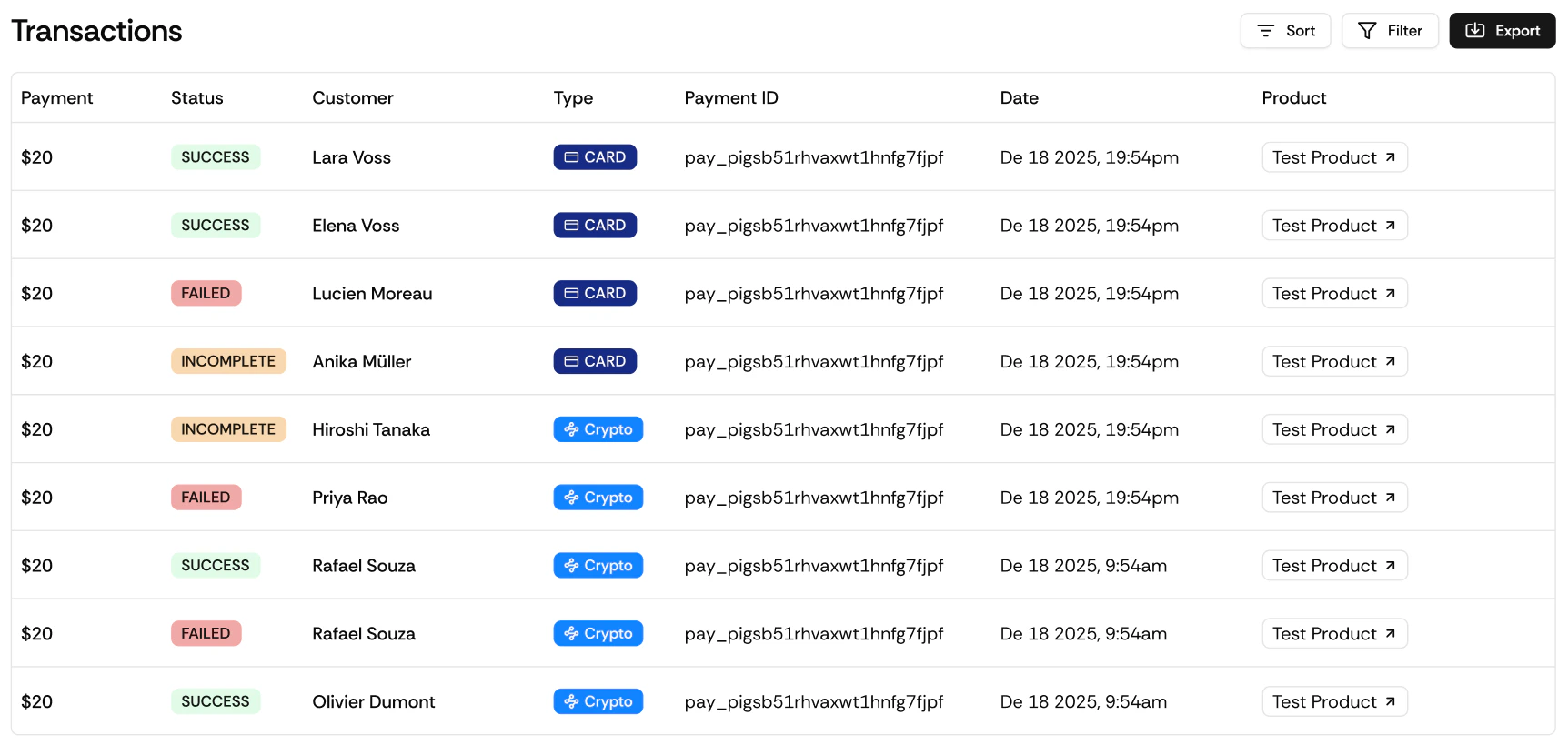
Transaction Statuses
| Status | What it means |
|---|---|
succeeded | Payment was processed successfully |
pending | Payment initiated but not yet confirmed |
expired | Checkout session opened but payment was not completed |
failed | Payment attempt was declined or failed |
refunded | Payment was successfully refunded |
What You Can Do
View Details
Click any transaction to see the full breakdown, amount, fees, customer, product, payment method, and timestamp.
Issue a Refund
Refund any transaction with status
succeeded directly from this page.Filter
Narrow down by status (succeeded, pending, expired, failed, refunded) or by date range.
Export
Download your full transaction log as CSV for accounting, reconciliation, or tax records.
Exporting Transactions
The export includes all transaction details matching your current filter selection, useful for accounting, reconciliation, or tax records.
Transactions vs. Payments
Payments
Successful charges only, the revenue view of your account. Use this for revenue tracking.
Transactions
Every event including failed attempts, expired sessions, and refunds, the complete operational log. Use this for debugging, reconciliation, and support.